On This Page
Install Island Desktop
Six short steps. The screenshots are from a Mac.
One time only. You install the Boson tool separately, in Task Workflow Step 2.
Install opencode
Open Terminal, paste this command and press Return.
curl -fsSL https://opencode.ai/install | bashOpen the welcome email
Island emails you a welcome message. Click Create Account and Download Island. Use the email on your HAI profile.
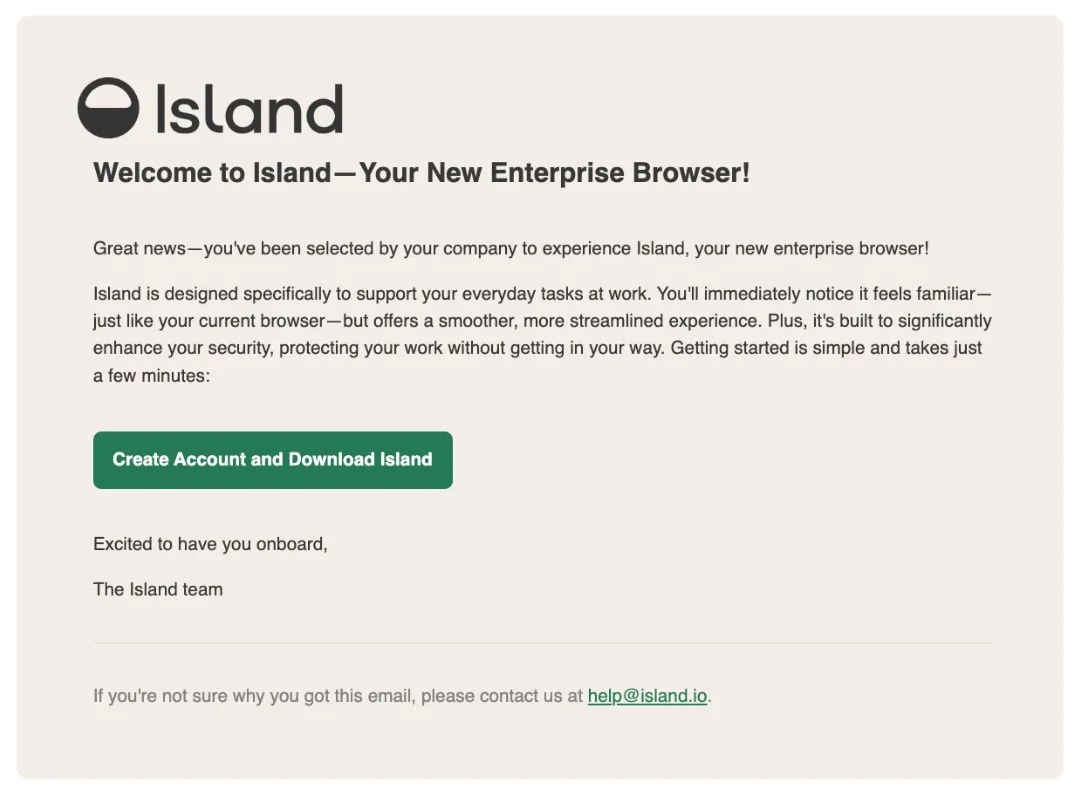
No email? Ask in #boson-tasking. The project team has to add you to the Boson group first.
Run the installer
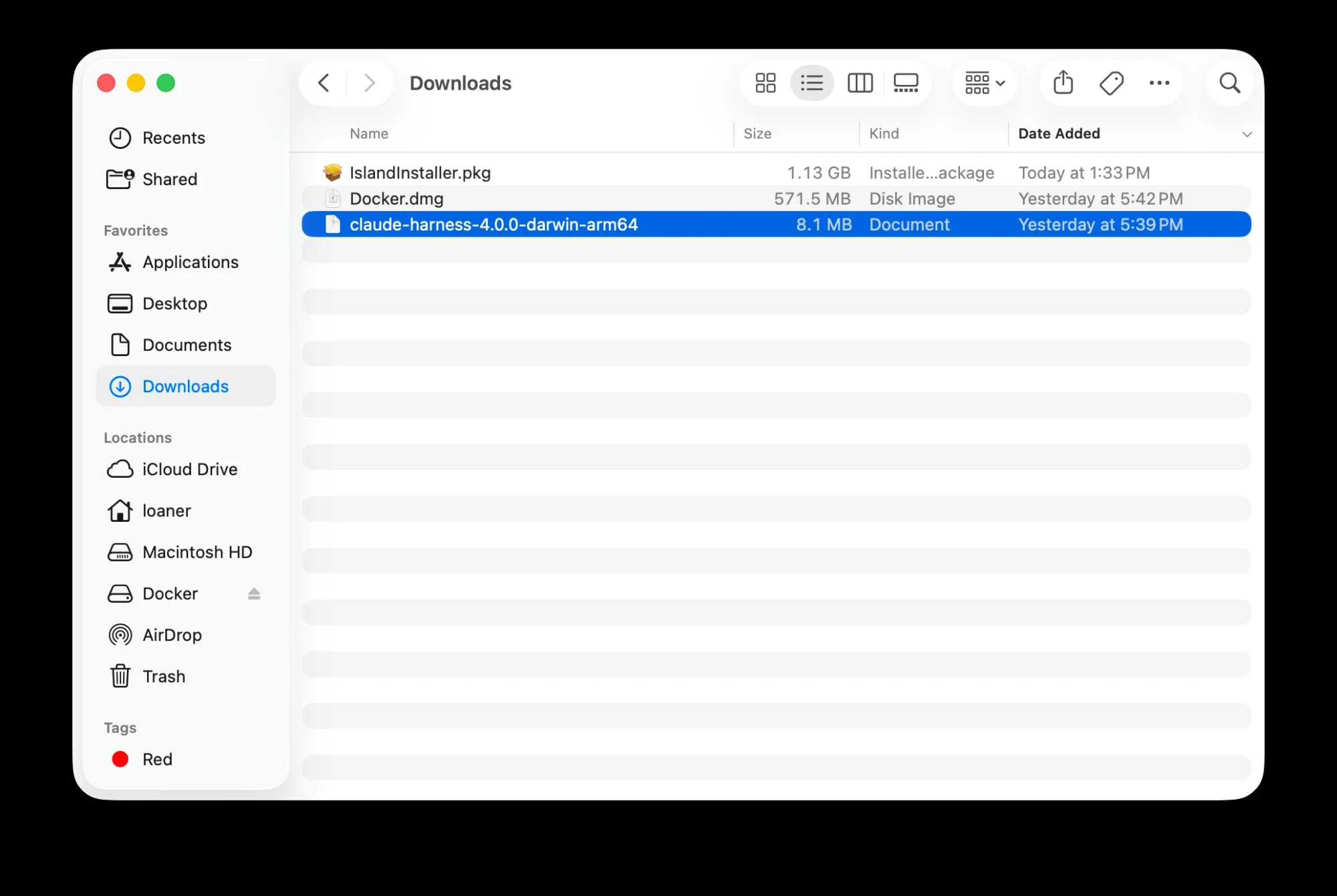
The download is IslandInstaller.pkg, about 1.1 GB. Find it in your Downloads folder and double-click it. The install needs about 1.9 GB of free space.
Install for all users
When the installer asks how you want to install, choose Install for all users of this computer, then click Continue. macOS may ask for your computer password.
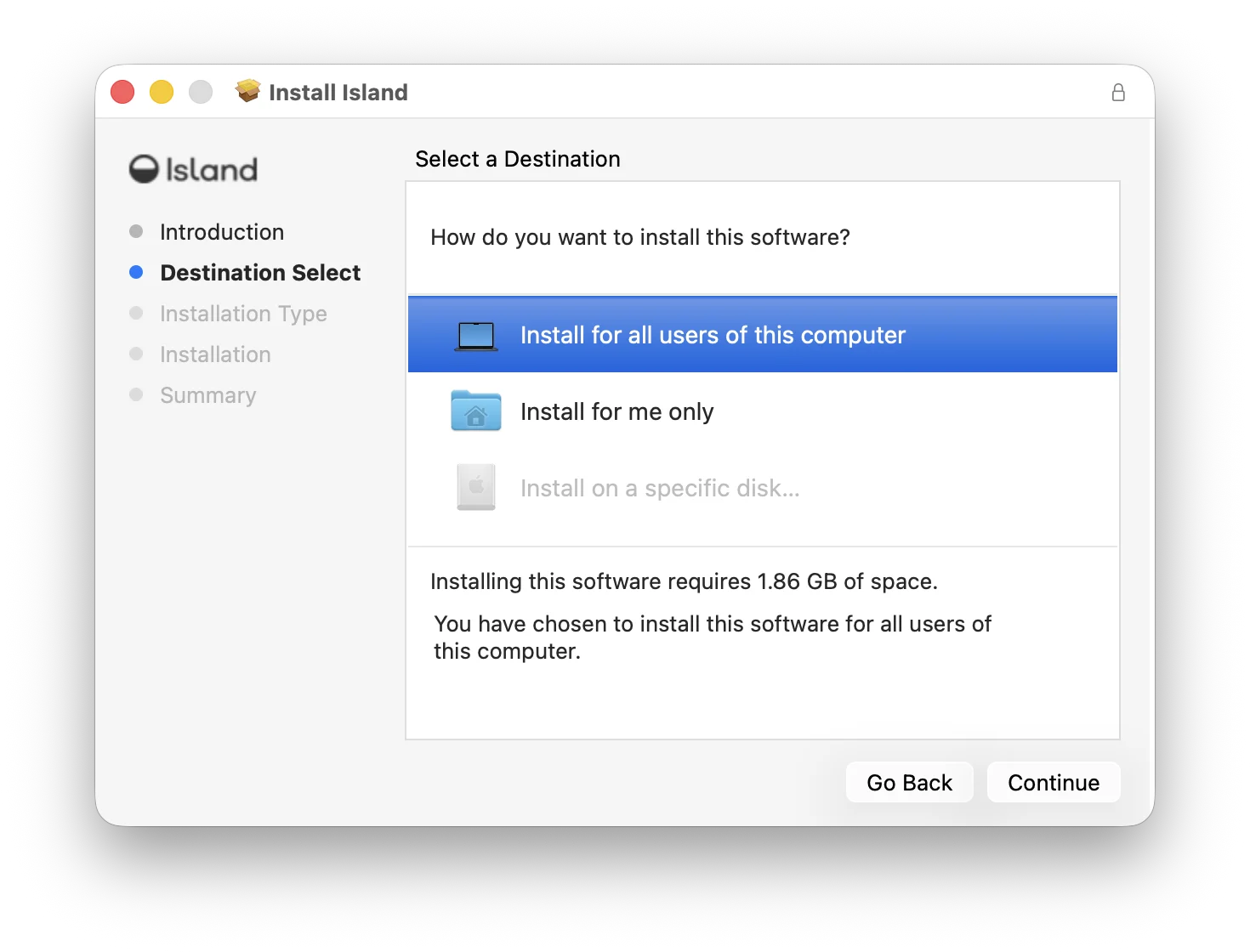
Not Install for me only
Pick the first option, for all users. Boson tasking needs Island Desktop installed that way.
Approve the macOS prompts
macOS asks you to approve the Island Desktop network and system extension prompts. Approve each one when it appears.
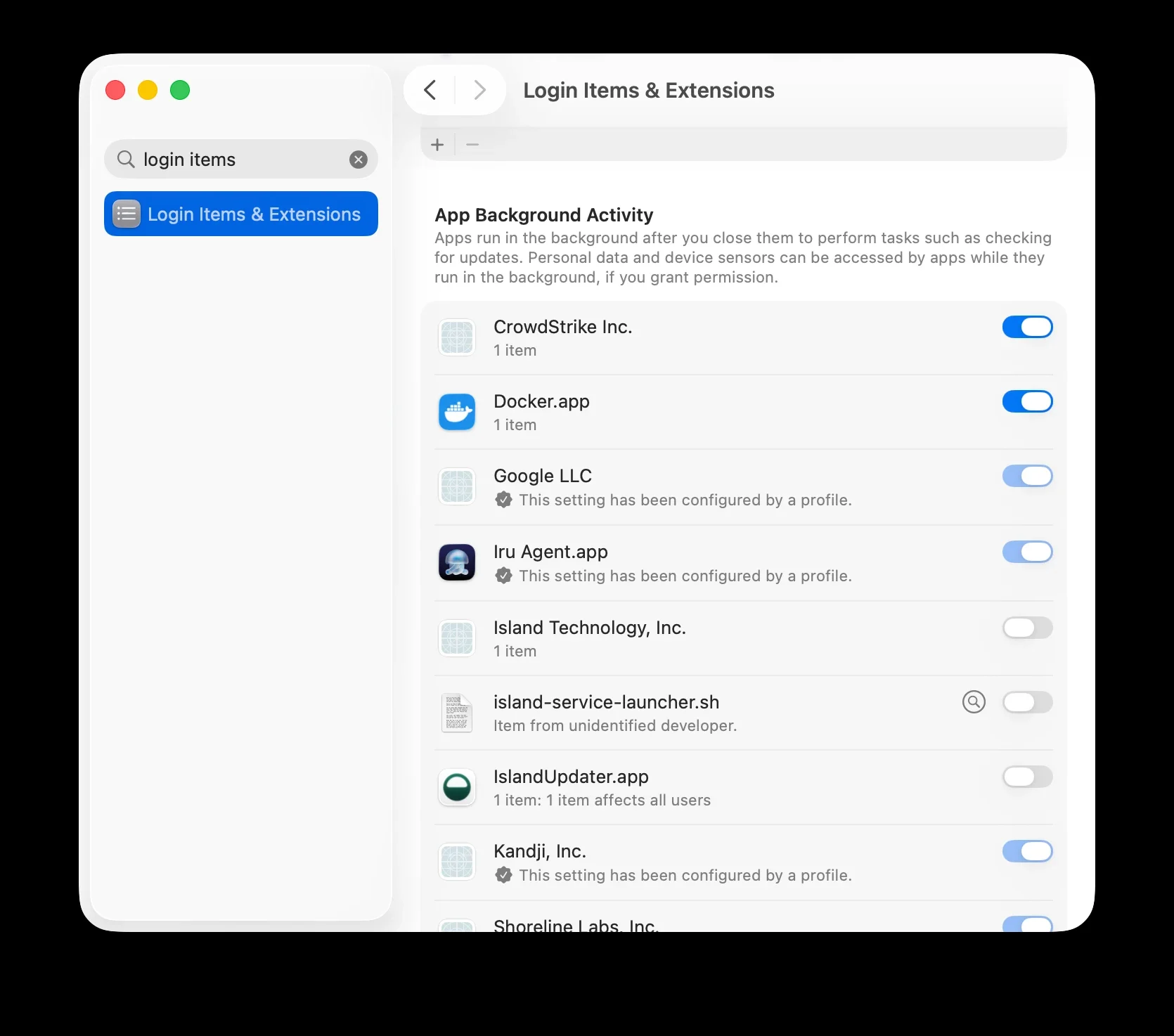
Then open System Settings and search for Login Items. Under App Background Activity, make sure the Island Technology and IslandUpdater items are turned on.
Sign in and connect
Sign in to Island Browser with the email on your HAI profile. Signing in also signs in Island Desktop. When it works, Island Desktop shows Connected.
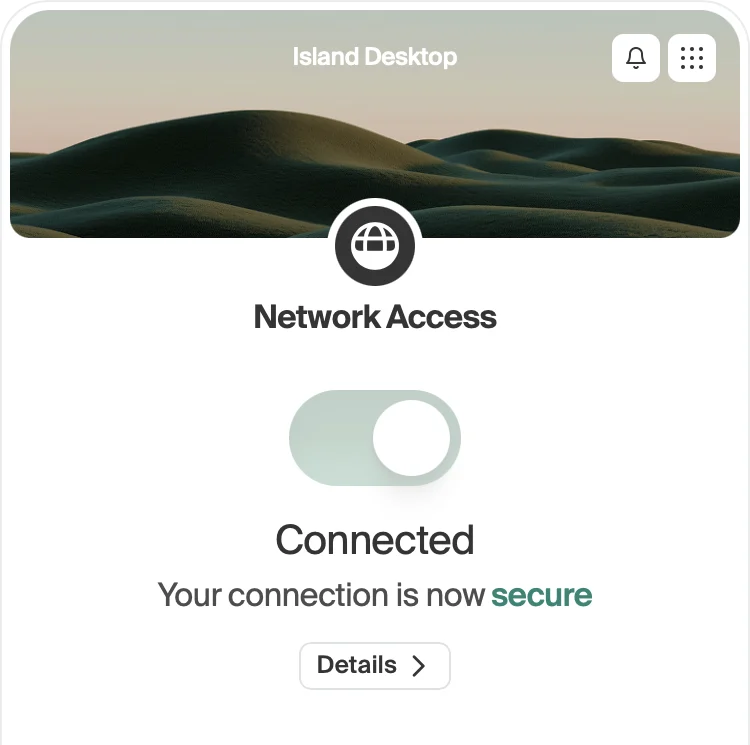
Keep Island Desktop connected while you task.
Done When
Island Desktop says Connected and Island Browser opens. After you install the Boson tool, boson doctor should pass too.
Something not working? See Troubleshooting.